
Guide · other
Unlock the vault and run a command in the new tab
How signing works in Speed OS: on-device encrypted vault, session unlock, and using the optional terminal in the new tab. Placeholder screenshots; replace with real UI when publishing.
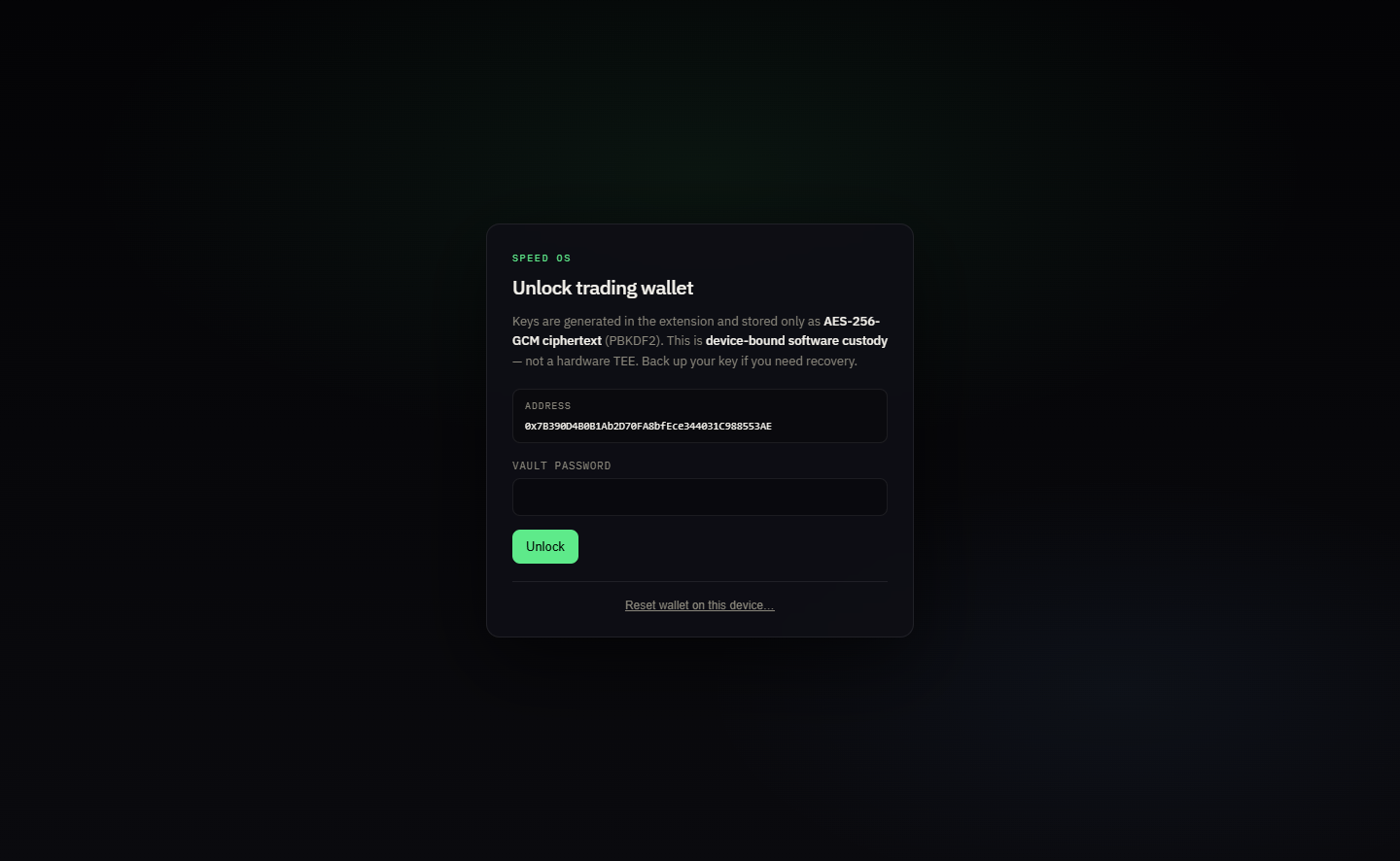
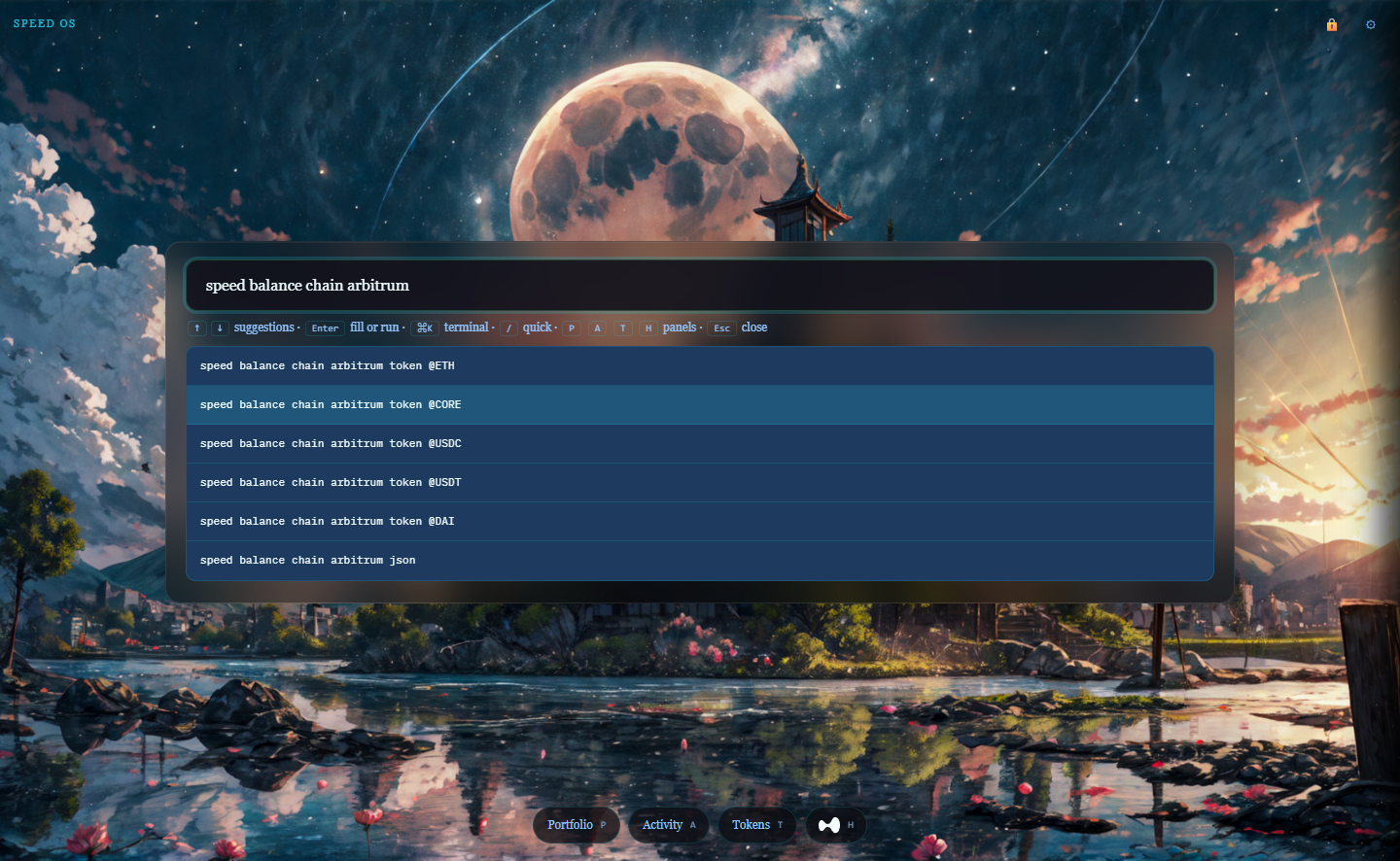
Speed OS stores trading material in an on-device encrypted vault; it is decrypted in memory for a session when you unlock—this is a standard “software wallet on your computer” model, not custodial storage on a Speed server. The new tab is where you run Ask and the optional terminal for CLI-like commands in the browser.
At a glance
- Vault = local encrypted storage in Chrome, not a cloud account that holds your raw private key.
- Unlock = time-bounded access for signing while you are actively using the session.
- Optional MCP = environment merge (e.g.
mcp.ispeed.propatterns), not a replacement for the vault key.
Step 1 — Open the workspace
Open a new tab. The Speed OS UI should be your entry point: faster than hunting the extension icon for every small action.

Step 2 — Unlock for signing
When a flow needs a signature, complete the unlock step for the session and confirm you are on the right account and right network context for what you are about to do.
Step 3 — Run a command, read the preview
Use Ask or the terminal to run a tool. If a preview is shown, treat it like any other wallet: do not sign if the calldata, spender, or destination is unexpected.
FAQ
Is this a hardware wallet?
No. Hardware wallets add a separate trust boundary. Speed OS is software on your device: your risk model includes malware, physical access, and extension updates.
What about MCP?
MCP is optional and is meant to merge non-custodial environment settings. It should not “take custody” of your private key. If anything suggests otherwise, stop and read the current docs and manifest for your installed version.
Related
- What is MCP in crypto? — how MCP is defined for this product space.
- Speed OS vs MetaMask for trading — when to pair tools vs only use a wallet.